Audit HubSpot Data Without Sharing It (Browser-Only)
Export your HubSpot contacts as CSV, then analyse the file with a tool that reads it in your browser. Nothing is uploaded: only the result is shown on screen.
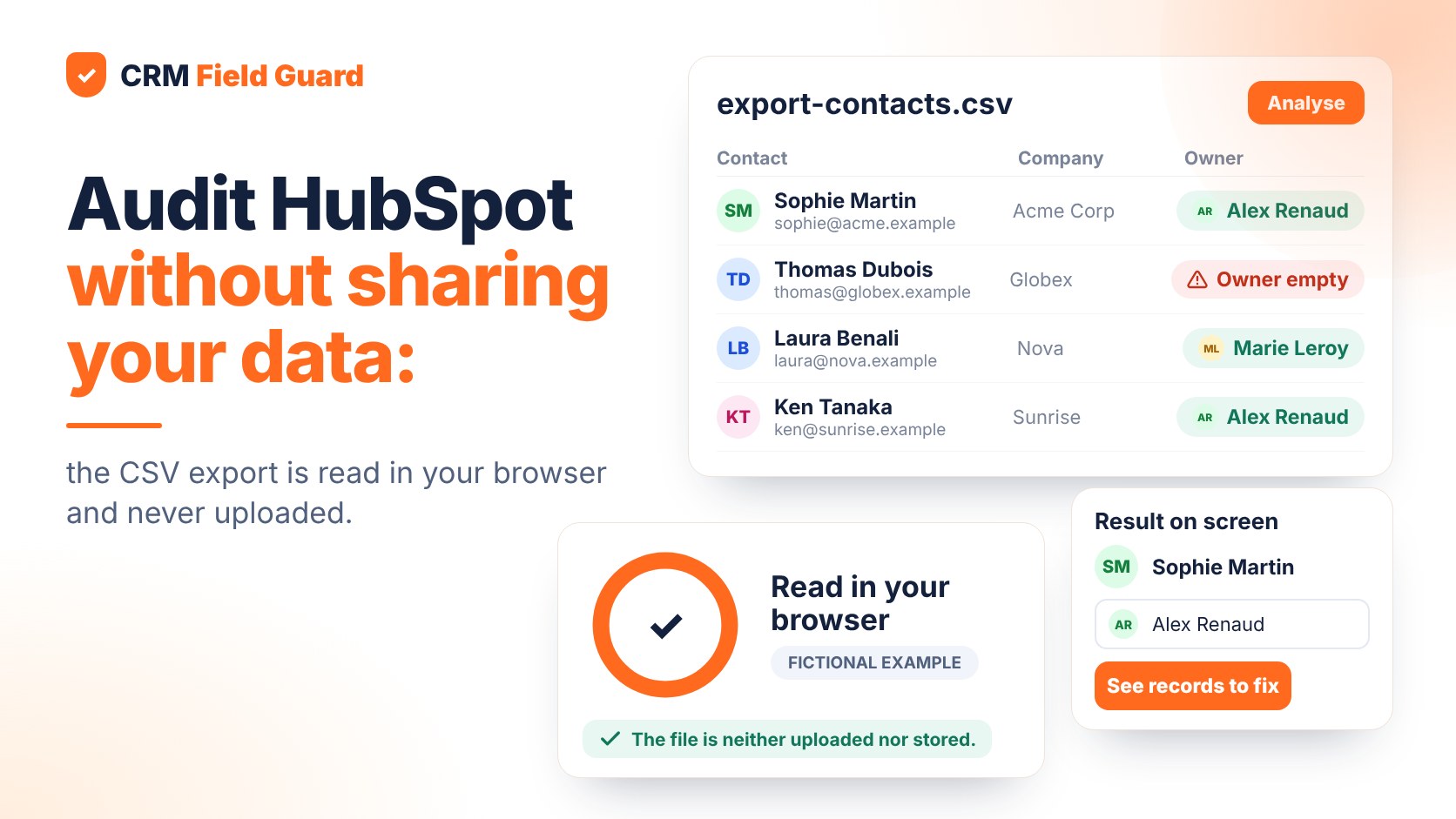
To audit your HubSpot data without sharing it, export your contacts as CSV and analyse the file with a tool that reads it in your browser: the file stays on your computer and only the result is shown on screen. You avoid granting standing access to your portal or uploading a customer database to a vendor.
Why the question comes up
A contact export holds names, emails and phone numbers: personal data about your prospects and customers. Many audit tools ask you either to connect your HubSpot portal or to send them the file. Either way, part of your database ends up with a third party, with consequences for your records of processing, your list of processors and sometimes your legal team's sign-off.
Before choosing, ask any tool three questions: is the file sent to a server? Is it kept? What does the vendor see beyond the result? If the answer is not clear and checkable, stay cautious.
Three ways to audit your HubSpot data
| Method | Where does your data go? | What to know |
|---|---|---|
| Tool built into HubSpot | It stays in HubSpot | No file to handle, but depends on your plan and interface |
| App connected to the portal | Read by the app through HubSpot's API | Convenient and continuous, but you grant access: check the permissions requested |
| CSV export analysed in the browser | It does not leave your computer | One file to export, no portal access |
No method is "the right one": it depends on how sensitive the database is and how often you check. A CSV analysed locally is the easiest to explain to a manager or a data protection officer, because it opens no access.
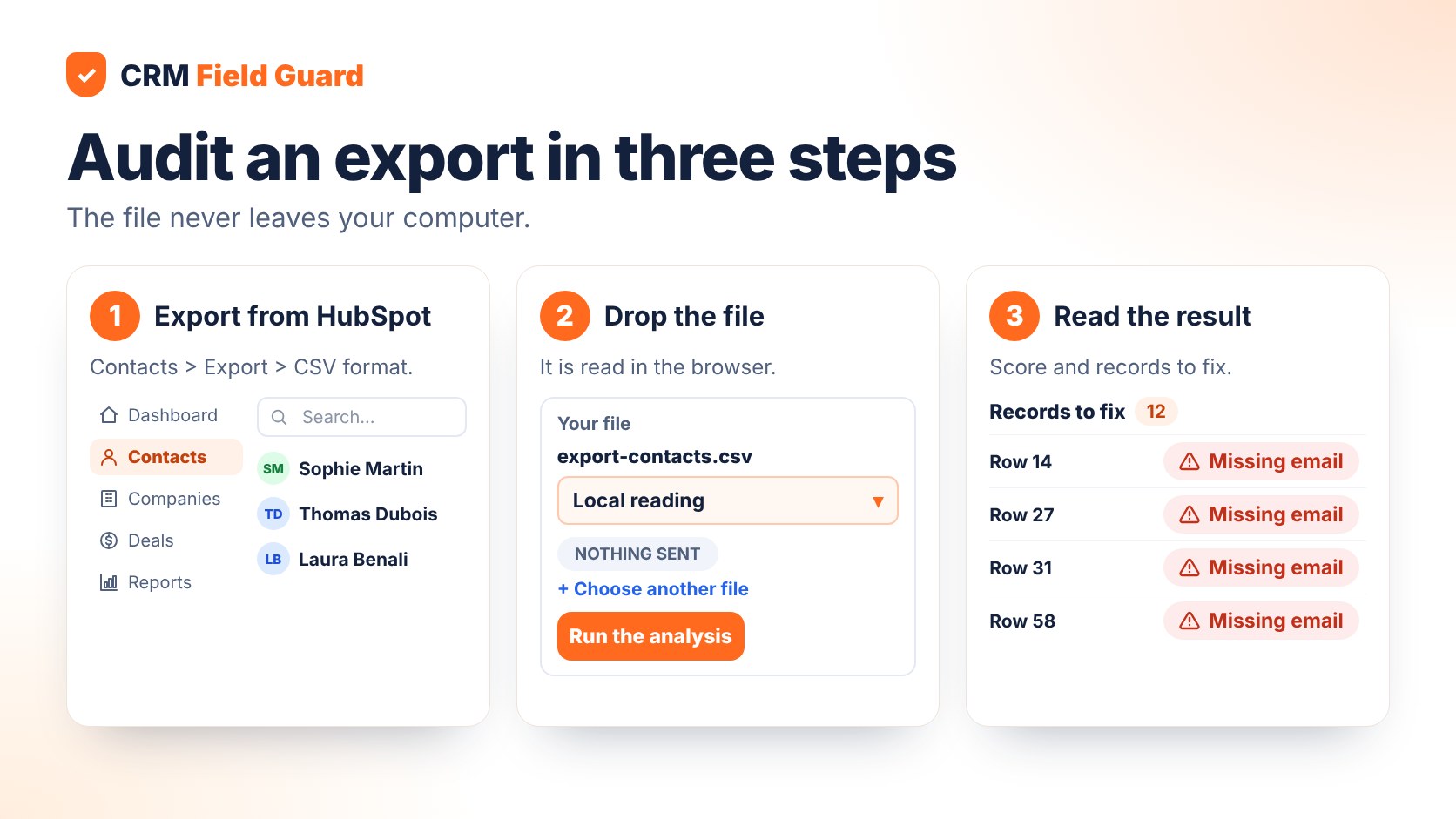
1. Export your contacts from HubSpot
Exports start from the records page. According to HubSpot's own documentation, you need export permission, then:
- Open CRM > Contacts and pick the view you want (the "All contacts" view exports everything).
- Click Export at the top right of the table.
- Choose the CSV file format and name the export.
- Click Customize if you want specific properties, then Export.
HubSpot emails you a download link that is valid for 30 days; large files may arrive zipped. Labels may vary by account and interface. For a useful audit, include at least email, owner, last activity date and, if possible, phone, company, job title and lifecycle stage.
To remove any doubt about privacy, export only the columns the audit needs and delete the file once the analysis is done.
Want to try it on your own export? Create a free account (confirmed email required): the CSV diagnostic runs in your browser and the file is not uploaded.
2. Analyse the file in the browser
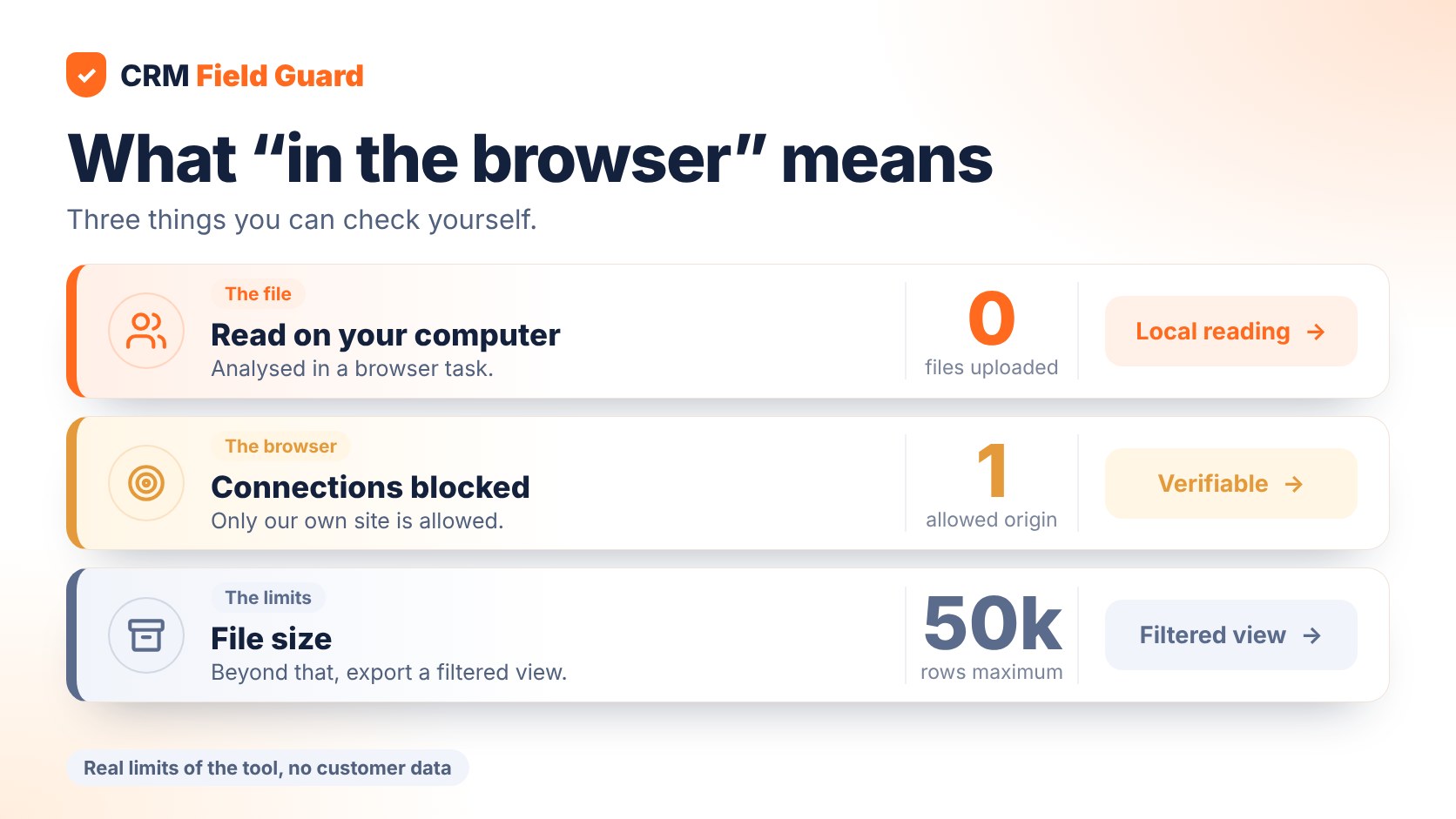
In a "browser-only" audit the file is not transmitted: a web page reads it with your browser's own capabilities, the computation runs locally and the result appears on screen. In practice, with CRM Field Guard:
- the file is read and scored in a browser task (a Web Worker); it is neither uploaded nor stored;
- the audit page applies a strict Content-Security-Policy that allows no connection to a third-party site, no external script and no form;
- no analytics or error logger is added to that page;
- limits are 50,000 rows and 60 MB per file; above that, export a filtered view (for example the last 90 days).
You do not have to take our word for it. Open your browser's developer tools (Network tab), drop a file and watch: no request carrying your data leaves during the analysis. The audit needs a signed-in account with a confirmed email, but that gates the page, not your file.
3. Read the result and fix in HubSpot
The audit computes a 0-100 score from three pillars (completeness, consistency, freshness), lists the top fixes with the projected gain and, for most rules, gives the row numbers in your export. You then fix things in HubSpot: the tool never edits your records.
The score is a data-quality indicator, not an assessment of people. The per-person view shows the records assigned to each owner, to organise the clean-up rather than to blame anyone.
Ready to see what your database looks like? Run the free diagnostic.
4. When to move to the HubSpot connection
CSV suits a one-off check. If you want to track your score over time without exporting again, CRM Field Guard also offers a read-only HubSpot connection (one limited free analysis, then continuous tracking and larger samples on paid plans): the app reads your portal, never writes to it, and you can disconnect it at any time. It is a different trade-off: more comfort, but access granted. The pricing page lists what each plan includes.
FAQ: frequently asked questions
Can a HubSpot data audit be done without access to my portal?
Yes. A CSV export is enough to compute quality indicators: missing fields, invalid emails, duplicates, inactive contacts.
Is my CSV file sent to your servers?
No. It is read and analysed in your browser, and is neither uploaded nor stored. Only the result is shown on screen.
How can I check that nothing leaves my computer?
Open the Network tab of your browser's developer tools during the analysis: you will see no request carrying your file.
What file size is supported?
Up to 50,000 rows and 60 MB. For a larger database, export a filtered view or use the read-only HubSpot connection (see pricing).
Do I need an account to use the CSV audit?
Yes, a free account with a confirmed email. The account gives access to the page; it is not used to store your file.
Conclusion
Auditing your HubSpot data does not require opening your portal or handing a file to a third party: a CSV export read in the browser is enough to get a score and a list of fixes. Keep the read-only connection for the day you want continuous tracking.
Want to test it without sharing anything? Create your free account.
This article is also available in: Français · Deutsch
Try a HubSpot diagnostic
Free, read-only, no credit card.